
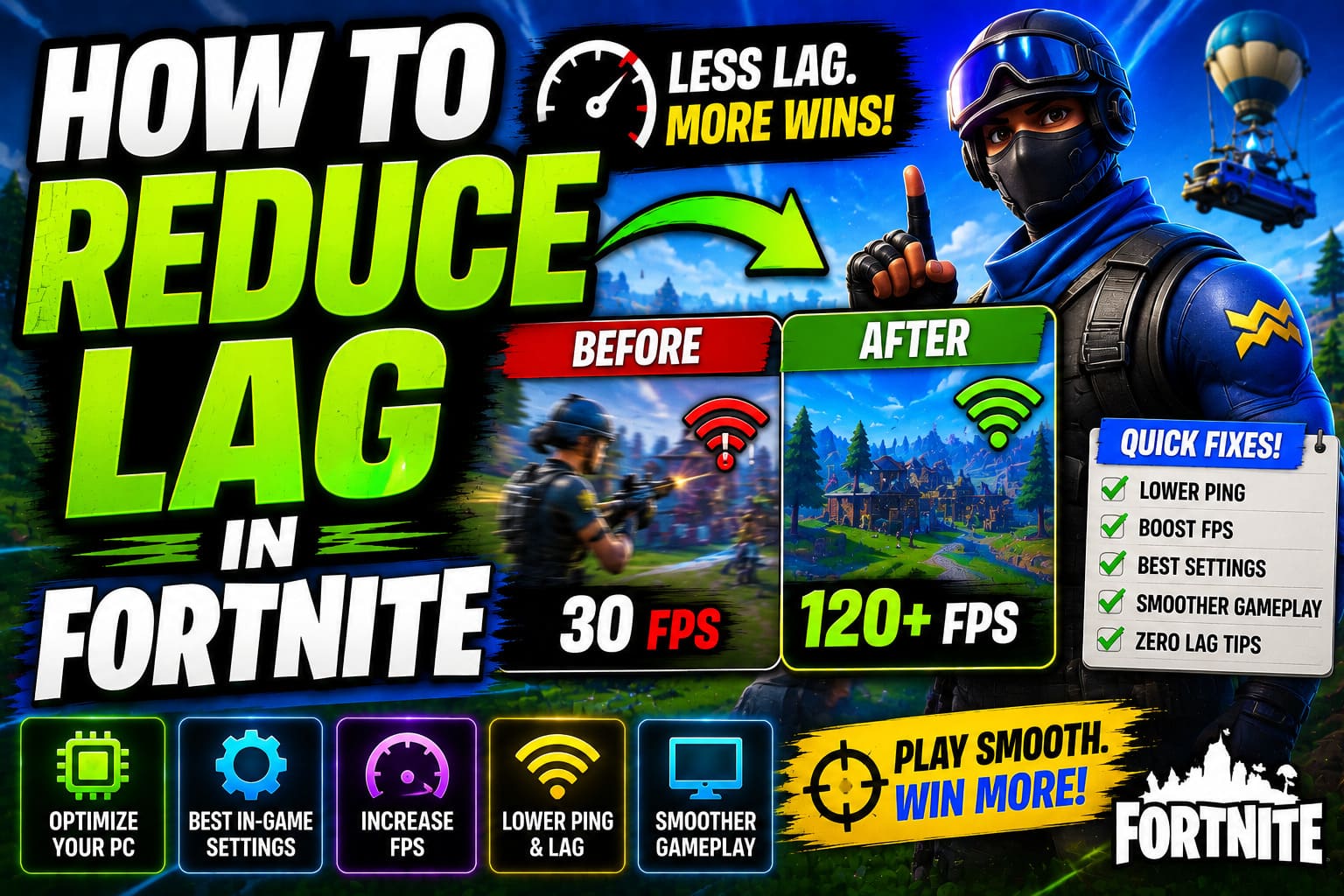
There’s nothing more frustrating than dropping into a match in Fortnite only to experience constant stuttering, rubber-banding, and lag that makes it nearly impossible to compete. Whether you’re a casual player trying to enjoy a few rounds with friends or a competitive player aiming for Victory Royales and tournament placements, lag can significantly impact your gaming experience. A few hundred milliseconds of latency can be the difference between clutching a victory and getting eliminated before you even see the enemy.
The good news is that lag isn’t always unavoidable. In fact, most players experiencing severe lag can dramatically improve their experience by understanding what causes it and implementing targeted solutions. This comprehensive guide will walk you through everything you need to know about reducing lag in Fortnite, covering network optimization, hardware improvements, game settings adjustments, and advanced troubleshooting techniques.
Part 1: Understanding Lag and Its Types
What Exactly Is Lag?
Lag is a blanket term that refers to any delay between your actions and the server’s response. When you press a button to fire your weapon or build a structure, there’s a tiny delay before that action registers on the server and is reflected in the game world. This delay, measured in milliseconds (ms), is what we call latency or ping.
The Three Types of Lag
1. Latency/Ping Lag
This is the most common type of lag and refers to the delay in data transmission between your computer and Fortnite’s servers. When your ping is high (typically above 100ms), you’ll notice:
- Delayed building responses
- Shots not registering where you aimed
- Enemies appearing in different locations than where you see them
- Difficulty editing structures quickly
2. Frame Rate Lag (FPS Lag)
This occurs when your graphics card can’t keep up with rendering the game at a smooth frame rate. Rather than a network issue, this is a hardware problem where your computer is simply not powerful enough to display the game smoothly. Symptoms include:
- Stuttering and freezing during gameplay
- Visual choppiness when turning or moving
- Reduced visual clarity and responsiveness
- Performance drops in intense fights or densely populated areas
3. Packet Loss and Jitter
Packet loss happens when data packets traveling to and from the server don’t arrive successfully. Jitter is the fluctuation in latency values. Both create unpredictable gameplay where:
- Actions occasionally fail to register
- Opponent movements become erratic
- Rubber-banding (character jumping back to a previous position)
- Inability to predict enemy positions
Part 2: Optimizing Your Network Connection
Check Your Current Network Performance
Before making changes, establish a baseline by checking your current ping and connection quality. Most online speed test services show your latency, download speed, and upload speed. Visit Speedtest.net to measure:
- Ping: Ideally below 50ms for optimal competitive play
- Download Speed: Minimum 25 Mbps recommended
- Upload Speed: At least 3 Mbps to prevent upload lag
Select the Best Server Region
Fortnite allows you to choose which regional server to connect to. Generally, you should select the server closest to your physical location to minimize travel time for data packets. In your launcher settings, you can manually select your preferred region. Common regions include:
- North America East (IAD)
- North America West (PDX)
- Europe (DUB)
- Asia Pacific (Tokyo)
- South America (São Paulo)
Choosing a server further away from your location will naturally increase your ping.
Use Ethernet Over WiFi
One of the single most impactful changes you can make is switching from WiFi to a wired Ethernet connection. WiFi is convenient but inherently unstable for gaming because:
- Radio interference from other devices
- Walls and obstacles weaken the signal
- Shared bandwidth with other connected devices
- Higher packet loss and jitter
A direct Ethernet cable connection provides:
- Stable, consistent latency
- Lower packet loss (nearly zero)
- Consistent speed without interference
- More reliable online gaming experience
If you absolutely must use WiFi, ensure you’re using the 5GHz band rather than 2.4GHz, maintain a clear line of sight to your router, and stay within close proximity to the router itself.
Optimize Your Router Settings
Your router is a critical component in your network chain. To optimize it:
Distance and Placement: Keep your router in a central location free from obstacles. The signal loses strength through walls, floors, and metal objects. If using WiFi, maintain line of sight to the router.
WiFi Channel Selection: If you must use WiFi, access your router’s admin panel and manually select a less congested WiFi channel. Channels 1, 6, and 11 are standard for 2.4GHz networks and don’t overlap with other channels.
Quality of Service (QoS) Settings: Modern routers include QoS features that prioritize gaming traffic over other types. Enabling this ensures Fortnite packets are prioritized over background downloads or video streaming by other household members.
DNS Settings: Your router uses DNS to translate domain names into IP addresses. Some routers have outdated DNS settings. Consider changing your DNS to faster alternatives like:
- Google DNS: 8.8.8.8 and 8.8.4.4
- Cloudflare: 1.1.1.1 and 1.0.0.1
Update Firmware: Regularly check your router’s manufacturer website for firmware updates. These often include performance improvements and security patches.
Close Background Applications
Every application running on your computer consumes bandwidth and processing power. Before launching Fortnite:
- Close web browsers and tabs
- Disable video streaming services
- Pause cloud backup services
- Stop torrent applications
- Close Discord screen sharing or streaming
- Disable Windows Update during gameplay
Press Ctrl+Shift+Esc to open the Task Manager and review the Network tab to see which processes are consuming bandwidth.
Disable VPN Services
While VPNs are useful for privacy, they can increase latency by routing your connection through additional servers. If you’re using a VPN, disable it while gaming. The added hop to the VPN server adds unnecessary latency that can impact competitive play.
Part 3: Hardware Optimization
Upgrade Your Graphics Card
The GPU is responsible for rendering graphics and maintaining high frame rates. Fortnite remains playable on integrated graphics but demanding situations—like major firefights or landing in crowded areas—will cause frame rate drops and stuttering.
Budget Options:
- NVIDIA GTX 1650 or 1660
- AMD RX 6600
Mid-Range Options:
- NVIDIA RTX 3060 or 4060
- AMD RX 6700 XT
High-End Options:
- NVIDIA RTX 4070 or 4080
- AMD RX 7900 XTX
For competitive Fortnite, aim for a card that can maintain 240+ FPS at medium settings to take advantage of high refresh rate monitors.
Increase RAM
Fortnite requires a minimum of 8GB RAM, but 16GB is recommended for smooth gameplay. RAM allows your computer to keep more game assets loaded in memory, reducing stuttering when moving between areas or during intense moments.
32GB is overkill for gaming unless you’re also running content creation or development software simultaneously.
Invest in an SSD
Storing Fortnite on a fast SSD (Solid State Drive) rather than an HDD (Hard Disk Drive) dramatically improves load times and reduces stuttering. The game can load assets faster, reducing microstutters that occur when the game pulls data from storage.
Consider these specifications:
- Speed: NVMe SSDs with PCIe 4.0 or 5.0 for best performance
- Capacity: Allocate at least 200GB for Fortnite and Windows/OS
- Reliability: Choose established brands like Samsung, Crucial, or WD
Maintain Proper System Temperature
Overheating causes CPU and GPU throttling, which reduces performance and creates stuttering. Ensure:
- Your computer has adequate ventilation
- Dust filters and heatsinks are clean
- Case fans are functioning properly
- Thermal paste on your CPU hasn’t dried out (if you’re comfortable reapplying it)
Use free tools like GPU-Z or HWiNFO to monitor temperatures while gaming. Your GPU should stay below 80°C and your CPU below 85°C during gameplay.
Close Unnecessary Background Processes
Even with background apps closed, Windows runs dozens of processes. Some you can safely disable:
- Xbox Game Bar (if not using it)
- Windows Game Mode can sometimes cause issues—experiment with disabling it
- Unnecessary startup applications
- Visual themes and animations in Windows settings
Part 4: Game Settings Optimization
Lower Your Graphics Settings
While playing on max graphics looks beautiful, it significantly impacts frame rate. For competitive play, prioritize FPS over visual quality.
Recommended Competitive Settings:
- Resolution: 1920×1080 or 2560×1440 (depending on your monitor)
- Render Distance: Epic
- Textures: Low or Medium
- Effects: Low
- Post-Processing: Low
- Shadows: Off
- Anti-Aliasing: Off or Low
- View Distance: Epic
- Window Mode: Fullscreen Borderless
These settings maintain visual clarity while maximizing FPS.
Enable Performance Mode
In Fortnite’s settings, ensure “Performance Mode” is enabled. This setting prioritizes frame rate over graphical fidelity and can provide significant FPS improvements.
Disable V-Sync
While V-Sync can eliminate screen tearing, it introduces input lag by waiting for your monitor to complete a refresh before displaying a new frame. Disable V-Sync for competitive gaming where responsiveness matters more than perfect visual smoothness.
Set Frame Rate Cap Appropriately
Cap your frame rate slightly below your monitor’s refresh rate (if your monitor is 144Hz, cap at 140 FPS). This provides a small buffer and ensures consistent frame delivery. However, don’t cap at 60 FPS if your hardware can achieve higher frame rates.
Configure 3D Resolution
If your GPU is struggling, lower the 3D resolution scaling below 100%. This reduces the resolution the game renders at internally, allowing higher frame rates, though at the cost of visual clarity.
Part 5: Internet Connection Improvements
Upgrade Your Internet Plan
If your ISP offers faster speeds, upgrading from 50 Mbps to 200+ Mbps can help if you’re sharing your connection with others. However, ping is more important than raw speed for gaming. You can game acceptably on 25 Mbps; you cannot game well with 150ms ping.
Consider a Different ISP
If your area has multiple internet providers, research their typical ping to gaming servers. Some providers have better peering agreements with gaming networks, resulting in lower latency. This requires research into local provider options and might not be feasible in all areas.
Reduce Network Congestion
Ensure other household members aren’t using bandwidth-intensive activities while you play:
- No video streaming on other devices
- No large downloads
- No video conferencing
- No online multiplayer gaming on other devices
Contact Your ISP About Port Forwarding
Some users report improved connections after port forwarding. Contact your ISP’s support or access your router’s admin panel to forward ports used by Fortnite (typically UDP 5060-5090). However, this has inconsistent results and may not help in all situations.
Monitor Your Connection in Real-Time
In Fortnite, enable the FPS and ping display:
- Go to Settings > Interface
- Enable “Show Performance Stats”
- This displays your current ping, FPS, and packet loss in-game
Part 6: System Maintenance
Keep Drivers Updated
Outdated GPU and network drivers can cause performance issues and stability problems.
NVIDIA: Use NVIDIA GeForce Experience or visit nvidia.com AMD: Use AMD Adrenalin software or visit amd.com Intel: Visit intel.com for integrated graphics drivers
Update to the latest stable driver version, not beta versions which can be less stable.
Run Regular Disk Cleanup
Over time, temporary files accumulate and can impact performance:
- Press Windows Key + I to open Settings
- Go to System > Storage
- Click “Temporary files”
- Select items to delete and click “Remove files”
Disable Unnecessary Windows Services
Some Windows services you can safely disable for gaming:
- Windows Search (slows system responsiveness)
- Windows Update (schedule it for non-gaming times)
- Background Intelligent Transfer Service (if you don’t use it)
Use caution when disabling services; disable only those you’re certain you don’t need.
Regular Antivirus Scans
Malware can consume bandwidth and computing resources. Ensure Windows Defender is active or you have reputable antivirus software installed. Avoid free antivirus programs, which often create more problems than they solve.
Part 7: Advanced Troubleshooting
Uninstall and Reinstall Fortnite
Over time, game files can become corrupted or outdated. Completely uninstalling and reinstalling can resolve persistent issues:
- Uninstall through Epic Games Launcher or Control Panel
- Manually delete remaining files from your Fortnite installation folder
- Reinstall a fresh copy from the Epic Games Launcher
Check for Hardware Conflicts
Sometimes hardware components aren’t working optimally:
- Disable any unnecessary USB devices
- Remove any overclocking on your GPU or CPU and run at stock speeds
- Ensure your motherboard BIOS is updated to the latest version
Test Your Connection Stability
Use ping utilities to test connection stability to Fortnite servers:
- Open Command Prompt
- Type:
ping -t 34.120.131.97(example Fortnite server IP) - Watch for packet loss or erratic latency spikes
High ping spikes indicate connection instability that needs addressing.
Scan for Network Issues
Run Windows Network Diagnostics:
- Right-click the network icon in the taskbar
- Select “Troubleshoot problems”
- Follow the diagnostic prompts
Part 8: ISP and Router Replacement Considerations
When to Replace Your Router
Modern routers (less than 5 years old) with WiFi 6 (802.11ax) support can significantly improve wireless connections. Signs you need replacement:
- Frequent disconnections
- Inconsistent speeds
- Poor signal strength despite proximity
- Inability to connect multiple devices
- More than 5 years old
Quality routers for gaming include:
- ASUS ROG Rapture series
- TP-Link Archer WiFi 6 series
- Netgear Nighthawk Pro Gaming
Evaluate Your ISP Service
If you consistently experience high ping despite trying all optimizations, your ISP might be the limiting factor. Consider:
- Checking your contract for guaranteed speeds and ping ranges
- Contacting support about connection stability issues
- Switching to a different ISP if available in your area
Some areas have only one provider, limiting your options. Research community forums to see if others experience similar issues.
Part 9: Monitoring and Maintenance Schedule
Weekly Maintenance
- Close unnecessary background applications before gaming
- Check for Windows and driver updates
- Clear temporary files
Monthly Maintenance
- Monitor GPU temperatures during gaming sessions
- Run a quick disk cleanup
- Restart your computer and router
- Check current ping to various servers
Quarterly Maintenance
- Update all drivers
- Run full antivirus scans
- Clean internal computer components if comfortable doing so
- Review and optimize router settings
As-Needed Maintenance
- Address any new lag issues immediately while still fresh
- Update Fortnite to the latest patch
- Replace thermal paste if temperatures are unusually high
- Upgrade hardware if performance drops significantly
Part 10: Expected Results and Timeline
Immediate Improvements
Switching to Ethernet and adjusting game settings can provide immediate 20-40 FPS improvements and up to 30-50ms ping reduction.
Short-Term (1-2 Weeks)
After implementing network optimizations and driver updates, you should notice:
- More consistent frame rates
- Reduced stuttering
- More stable ping values
- Improved hit registration
Long-Term (1-3 Months)
With sustained optimization and maintenance:
- Significantly improved competitive viability
- More predictable gameplay
- Better building responsiveness
- Increased win rates from improved reaction time
Conclusion
Reducing lag in Fortnite requires a multi-faceted approach addressing network, hardware, and software factors. While not every solution will apply to your situation, implementing even half of these recommendations will provide noticeable improvements.
Start with the quickest wins—switching to Ethernet and adjusting game settings—then progress to more involved optimizations. Monitor your performance throughout the process to identify which changes provide the most benefit for your specific setup.
Remember that some lag is unavoidable due to server-side factors beyond your control, but the vast majority of lag experienced by players stems from factors that can be improved. By taking these steps, you’ll be playing smoother, more responsive Fortnite and giving yourself a competitive edge in combat situations where every millisecond matters.
Game on, and may your builds remain stable and your shots land true!
